Connecting to TV/Display

Connecting to TV/Display
Step 1: Turn on the FLAIM receiver
- Remove the FLAIM receiver and HDMI cable from the case.
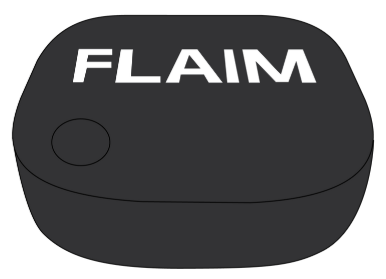
- Connect the HDMI cable to the HDMI end of the FLAIM receiver.
- Plug the HDMI end into the HDMI port on the TV / monitor.
Note: If using the monitor supplied, connect the HDMI micro adapter to the HDMI socket. - Plug the USB lead into the USB port on the TV / monitor.
Note: If using the monitor supplied, connect the USB A to USB C Y splitter cable into the monitor and FLAIM receiver. Use the international USB adaptor.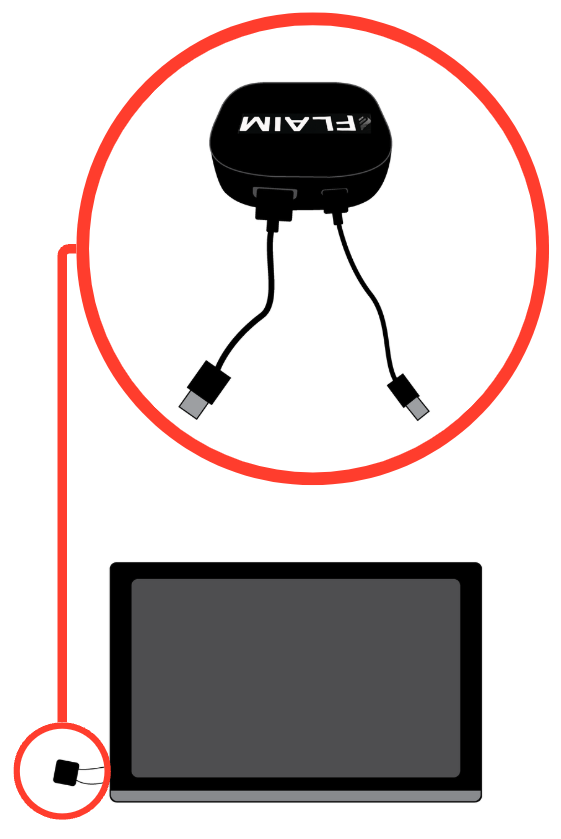
- A white light will illuminate on the FLAIM receiver once powered.
Step 2: Ensure the display is sourced correctly
- Turn on the TV / monitor.
- Select the source on the TV / monitor.
The 'Ready to Connect' screen should display on the TV / monitor.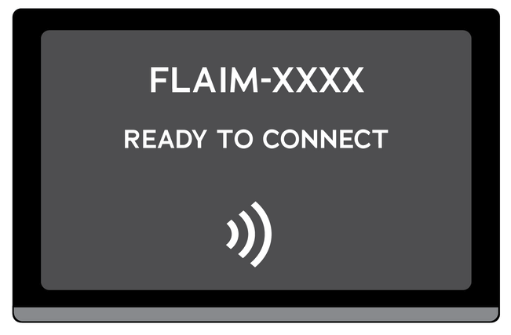
Step 3: Connect via FEX Launcher
- Power on the FEX Headset and wait until the Launcher has loaded.
- Select External Display Setup from the bottom menu ribbon.
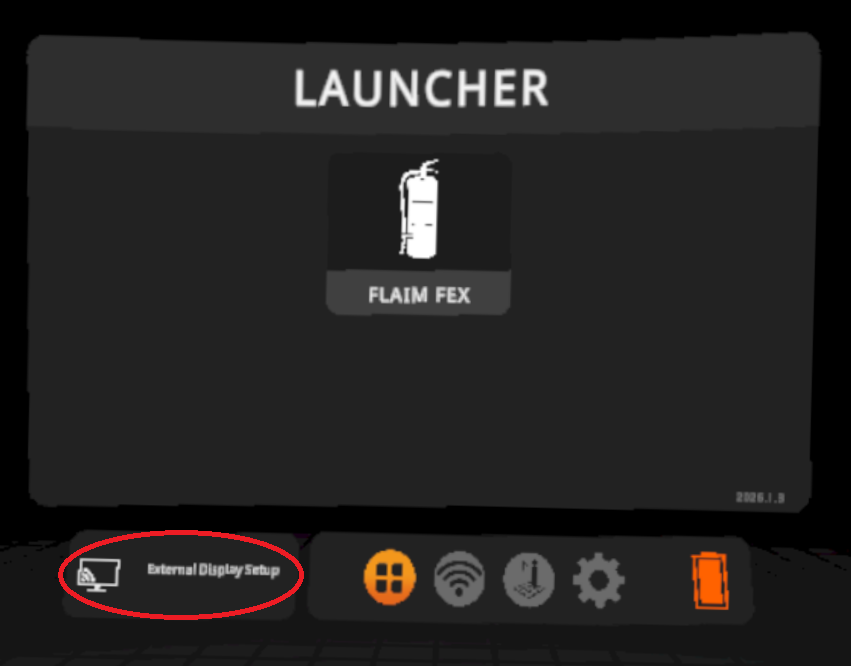
- Select the casting device from the list displayed, click Refresh and wait if the casting device does not appear. Consider power cycling the casting device if it does not appear.
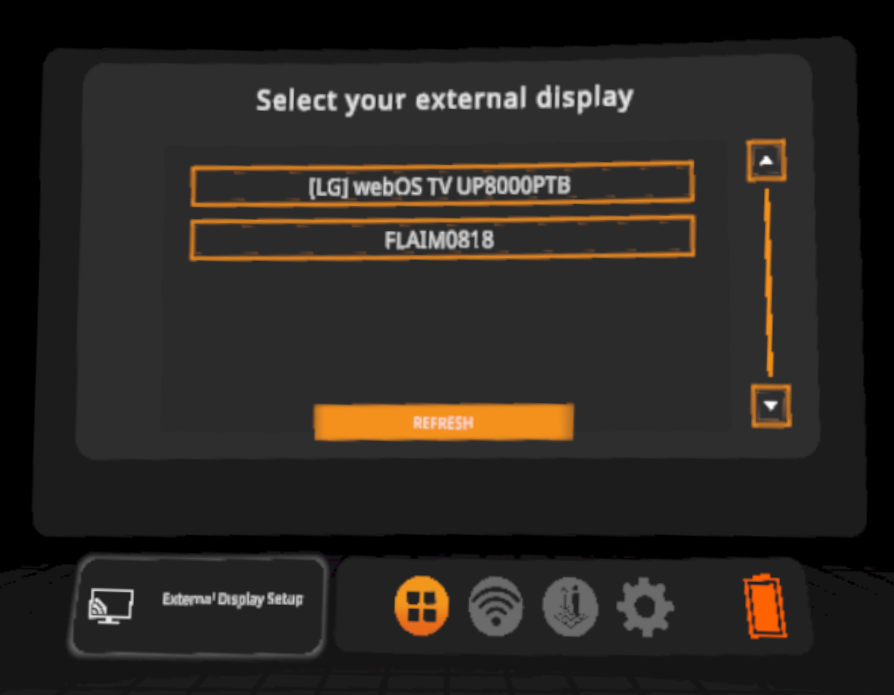
- Once connected, press the four square Launcher button to return to the main menu and begin your training.
Alternative Casting Option: Connect via FEX Headset
From FEX.2026.1.1 onwards, casting can be activated at any time. This includes within the FEX app, the FLAIM Launcher and even during a simulation.
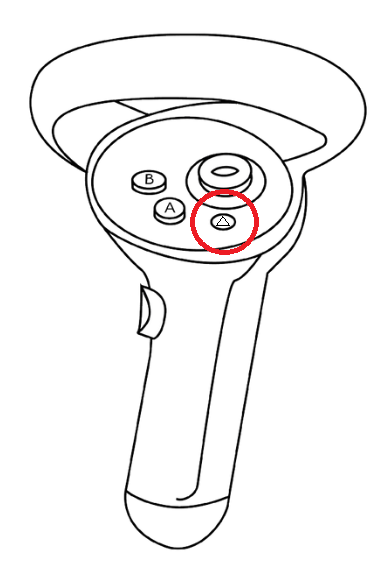
- Pull up the options menu by clicking the triangle button on the Right-hand controller (embedded in the extinguisher handle).
- Along the bottom menu ribbon, select the Cast button.
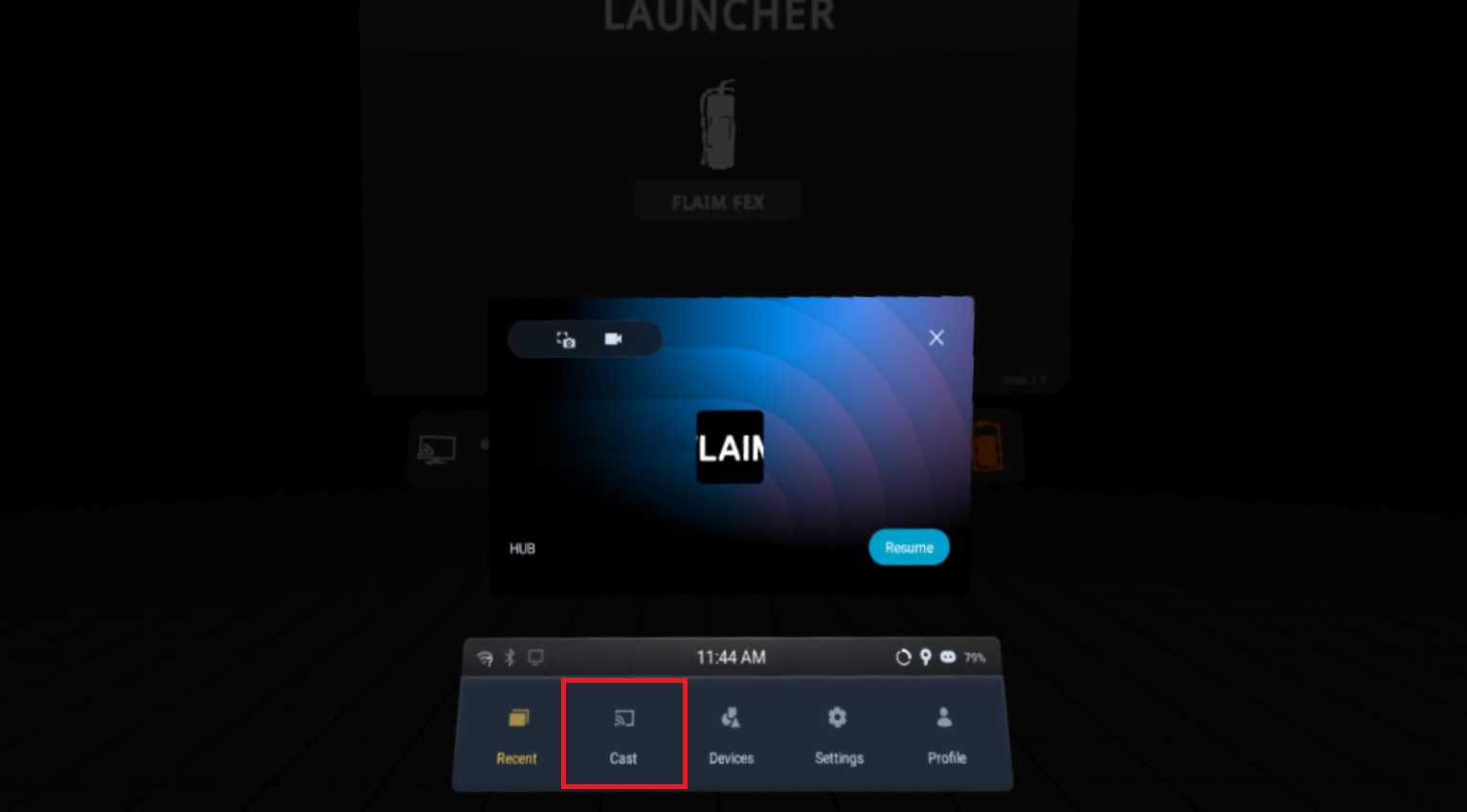
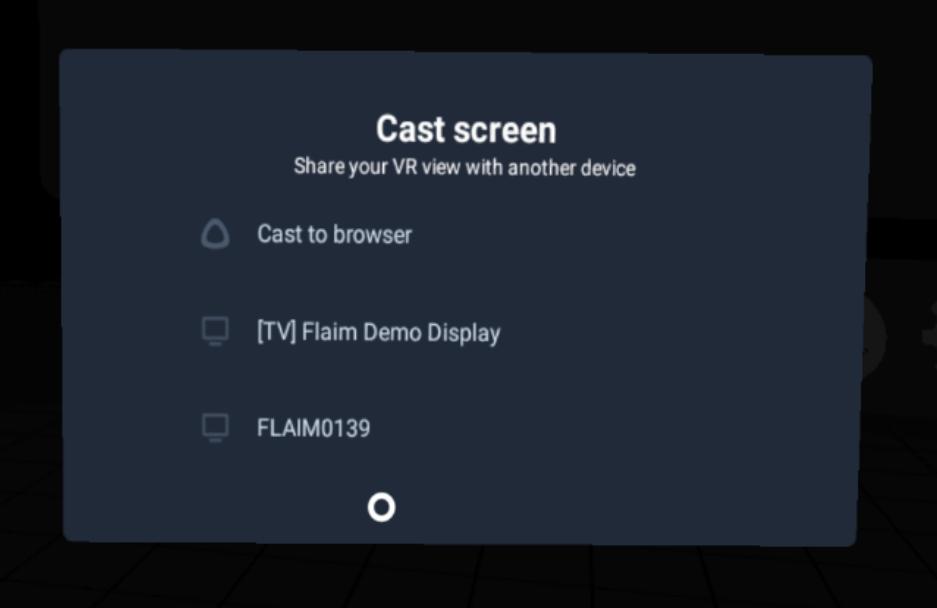
- Casting options will begin to populate the list.
- If you are using a FLAIM HDMI receiver > Click on the matching FLAIM serial.
- If you would like to cast to browser > Click Cast to browser > enter the shown URL into your browser.
- If you are casting to your own receiver > Click on the name of your device.
- Press the triangle button on the controller again to close the menu.