Reconnect the Nozzle/Branch

Reconnect the Nozzle/Branch
- On the iPad, open the FLAIM app and click through to the main screen.
- Select the Settings cog ⚙️ icon in the top left corner.
- Under 'Advanced Setup', press the Reconnect Nozzle button.
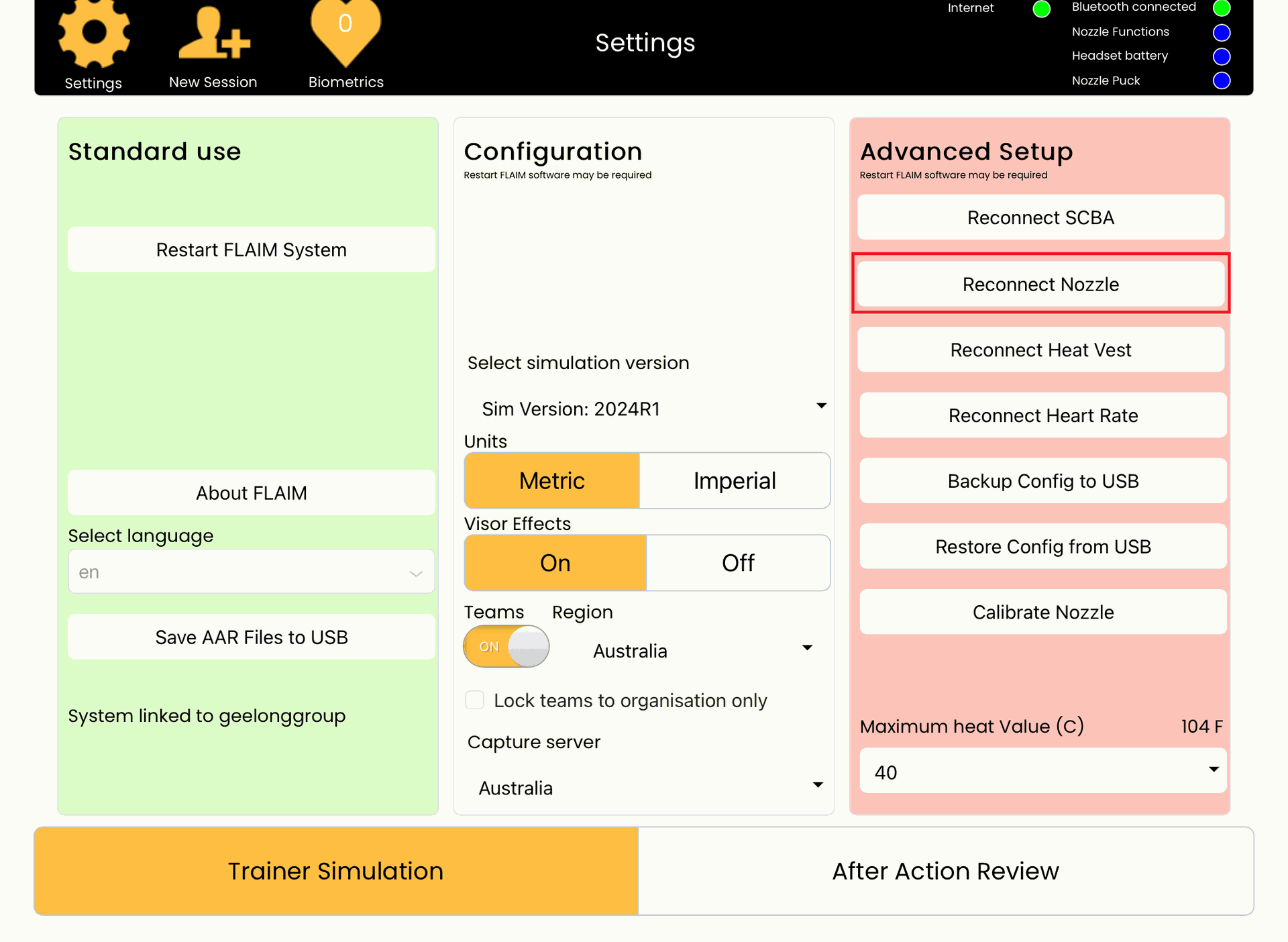
- Use the drop-down menu to locate the nozzle/branch. To find the ID of the Nozzle/Branch, check for the sticker on the nozzle/branch e.g. FLAIMTFT1234.
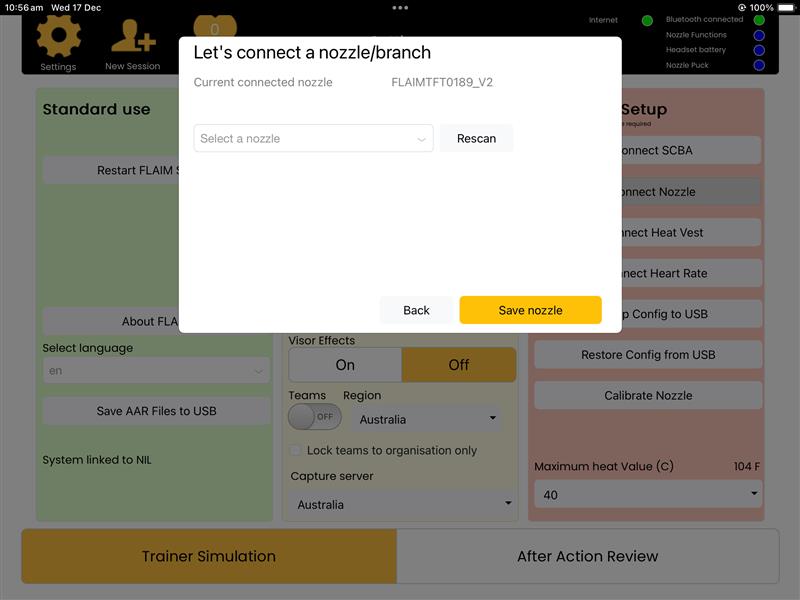
- Press Save nozzle.
- Once saved, select the Reconnect Nozzle button again. The 'Current connected nozzle' will identify the newly connected nozzle/branch. After you have confirmed that the nozzle/branch is connected, tap the Back button to return to the Settings page.
- Select the Restart FLAIM System button under 'Standard Use' on the left hand side. This confirms all updates to the system. Then press the Trainer Simulation box in the bottom left hand corner to return to the main iPad screen.