After Action Reviews (AAR)

After Action Reviews (AAR)
The After Action Review tab on the iPad is used by the instructor during simulations to assess the student learning outcomes. When creating an AAR, an instructor can:
- Add student details
- Save training records
- Check off standard competencies as supplied by FLAIM
- Edit the learning outcomes to tailor AAR's for specific training needs.
Conducting an AAR
The After Action Review (AAR) can be conducted at any time during or after a scenario has been run.
- On the iPad, ensure the Trainer Simulation screen is displayed.

- Tap the After Action Review button in the bottom right corner of the screen.
- Check the appropriate box for each learning outcome to complete the After Action Review.
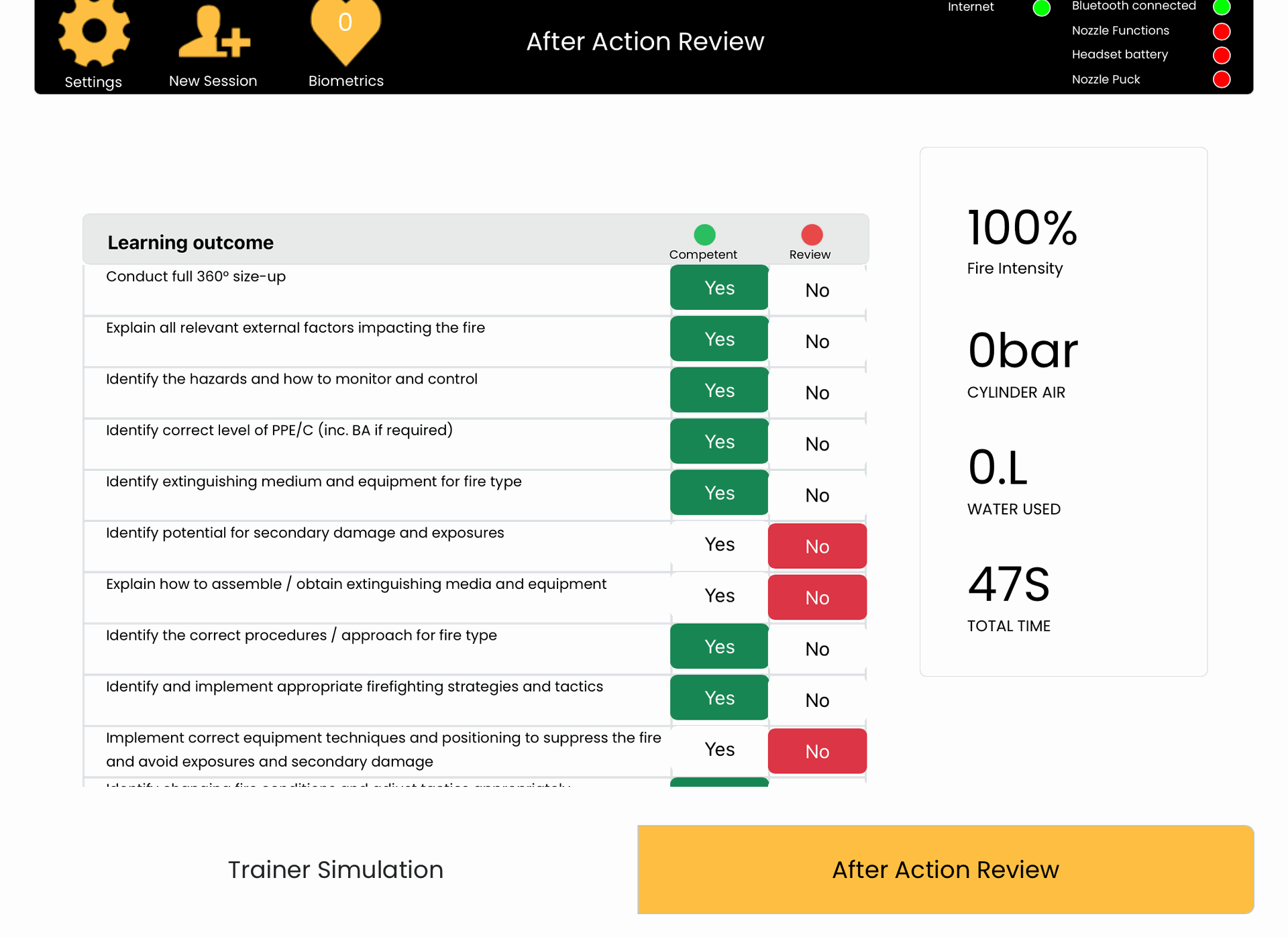
- To leave this screen and return to the main simulation page, tap the Trainer Simulation button in the bottom left.
- Tap the Stop button to end the scenario and return the user to the FLAIM Lobby.
Saving an AAR
- Plug a USB drive into any of the available slots on the Hose Reel.
- With the FLAIM App launched on the connected iPad, tap the Settings icon in the top left corner of the screen.
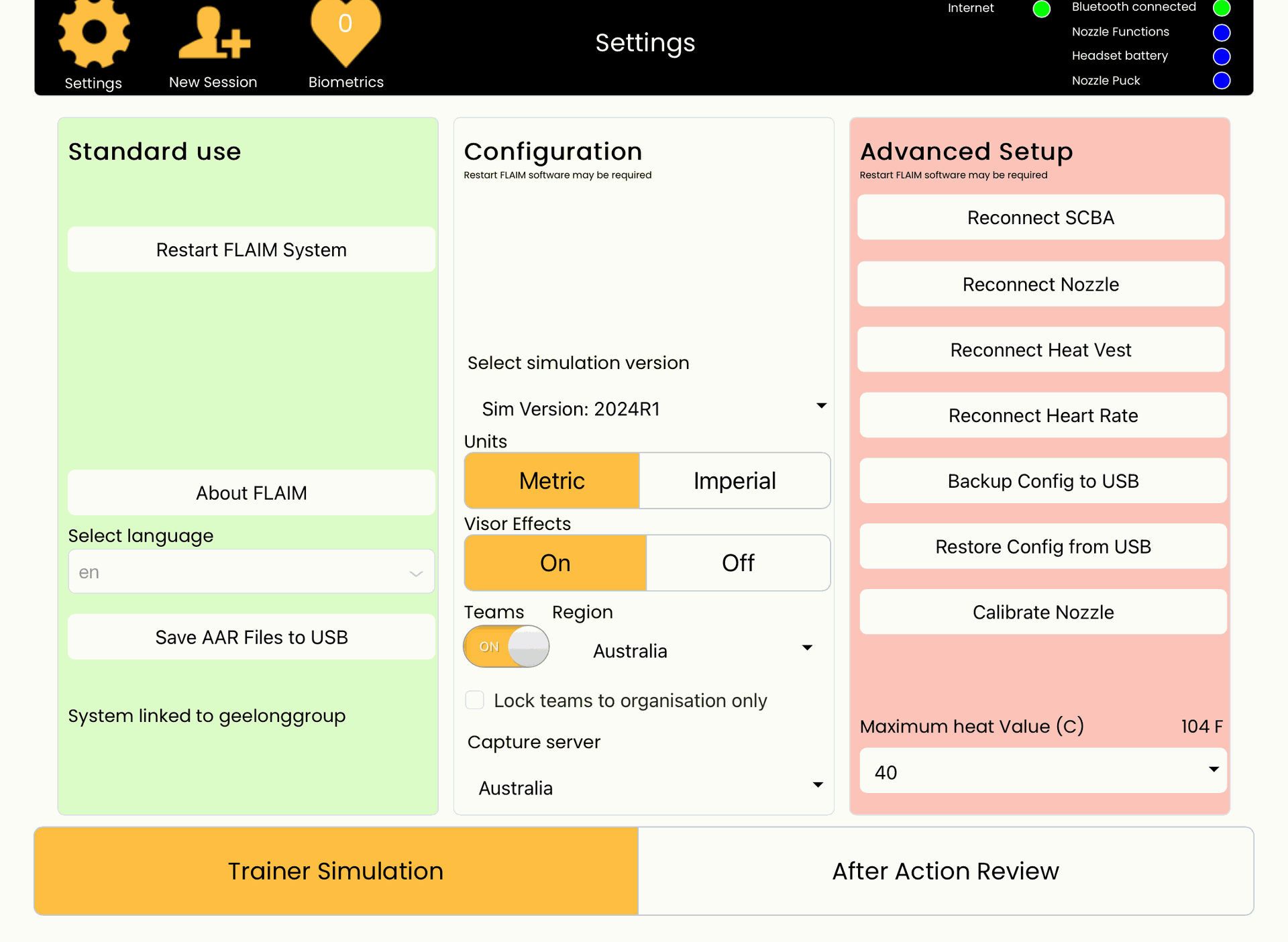
- Tap the Save AAR Files to USB button. The 'Let’s backup your After Action Review (AAR) Files' message will pop-up.
- Tap the Backup button. The AAR Files will be saved to the USB drive.
- Tap the Close button.
- To safely remove the USB drive from the Hose Reel:
- Take out the keyboard.
- Turn the keyboard on then move the slider so you can see the green sticker (not red).
- Select the show hidden icons up arrow. Open My Computer or select the USB icon from the button right corner of the menu toolbar.
- Right click on the USB drive.
- Choose Eject Flash Disk.
- 'Safe to Remove Hardware' message will display.